TL;DR — Run your JetBrains backend on a beefy-enough homelab machine, access your project files remotely over SSH via JetBrains Gateway, and let Resilio Sync propagate changes to your other machines. Your thin client does the heavy lifting; your laptop stays cool and responsive.
The Problem
If you've ever tried running PhpStorm (or any JetBrains IDE) on a mid-range laptop — say, an HP EliteBook x360 1030 with 8 GB of RAM and a Core i5 — you know the pain:
- The aluminium chassis turns into a hot plate within minutes.
- Indexing a medium-sized project hammers both CPU and RAM.
- Everything else on the machine slows to a crawl.
- Battery drain is aggressive.
The IDE is doing a lot of background work: indexing, static analysis, Xdebug listening, Composer resolution. None of that needs to happen on your client machine.
The Solution: Remote IDE Backend on a Thin Client
JetBrains IDEs support remote development via JetBrains Gateway — the IDE backend (the heavy engine) runs on a remote host over SSH, and only a thin UI layer runs locally. The connection is direct with no JetBrains relay servers involved, and all traffic is end-to-end encrypted with TLS 1.3 on top of the SSH tunnel.
Combine that with:
- Docker — to isolate and reproducibly define the backend environment.
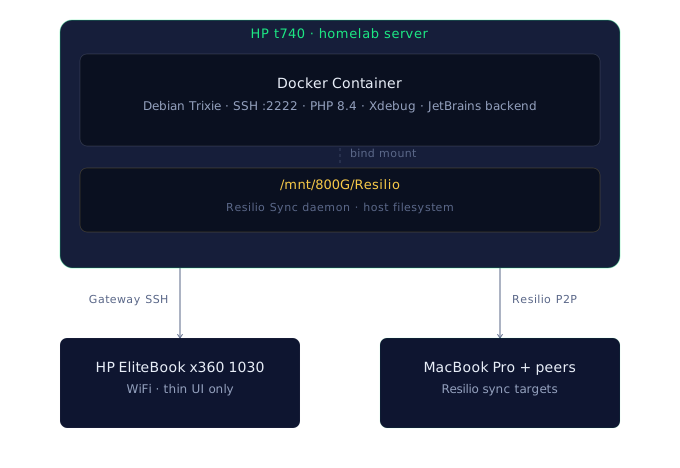
- Resilio Sync — a P2P file sync tool running on the t740 that propagates project changes to other peers (a MacBook Pro, other machines) without needing a central server. The EliteBook accesses files directly over the remote filesystem via Gateway — no Resilio client needed on it.
The server in this case is an HP t740 Thin Client with 24 GB of RAM — more than enough to run the IDE backend, PHP runtime, Xdebug, and still have room to breathe.
One important constraint: JetBrains Gateway's SSH backend only supports Linux servers. The backend also requires a glibc-based image — Alpine Linux will not work because it uses musl instead of glibc. Debian (used here) is a safe, well-supported choice.
Why Docker?
Running the IDE backend in a container rather than installing it directly on the t740 host wasn't an afterthought — it's what makes the whole setup practical.
1. Keeps the host clean. No JetBrains directories scattered across the host's home folder, no PHP extensions installed system-wide, no sshd config touching the host's own SSH daemon. The container is the mess, not the machine. If something goes wrong, the host is unaffected.
2. Highly portable. The Dockerfile and docker-compose.yml are the complete definition of the environment. Moving this setup to a different machine — a beefier server, a VPS, a colleague's homelab — is git clone and docker compose up. No install guide needed.
3. Resource limits. Docker's cpus and mem_limit caps mean the IDE backend can't starve other services running on the t740. A JetBrains backend left unchecked will happily consume everything available; pinning it to 4 cores and 8 GB keeps the rest of the homelab responsive.
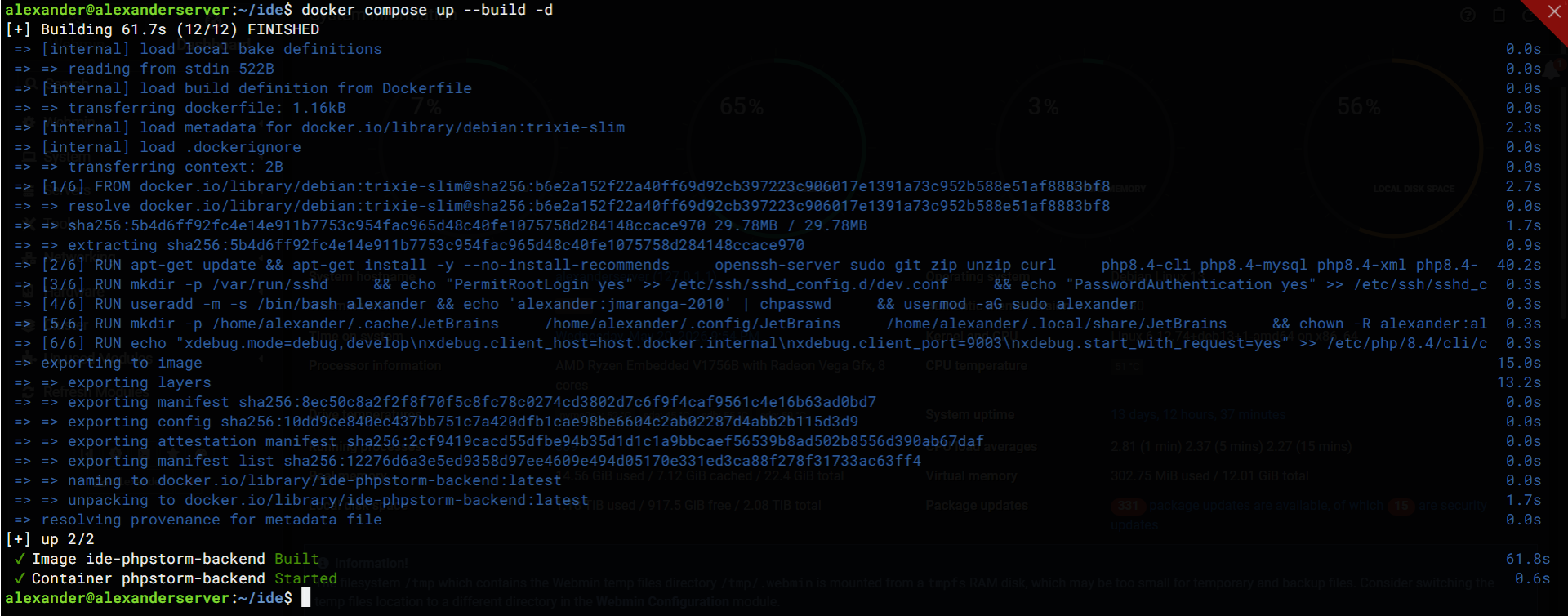
4. Clean recovery. IDE state can get messy — a corrupted index, a bad plugin install, Gateway in a weird state. With a named volume setup you'd have to hunt down the right cache directory to clear. Here, docker compose down && docker compose up --build gives a completely clean backend in under a minute, with the bind-mounted ./ide/ directories making it easy to wipe just the cache without touching config or plugins.
Architecture Overview
The Dockerfile
FROM debian:trixie-slim

ENV DEBIAN_FRONTEND=noninteractive

# Install OpenSSH, utilities, PHP 8.4 stack, and Composer
RUN apt-get update && apt-get install -y --no-install-recommends \
    openssh-server sudo git zip unzip curl \
    php8.4-cli php8.4-mysql php8.4-xml php8.4-curl php8.4-zip \
    php8.4-mbstring php8.4-intl php8.4-xdebug \
    composer \
    && rm -rf /var/lib/apt/lists/*

# Configure SSH — allow password auth (fine for a private homelab)
# Default OpenSSH on Debian includes the sftp subsystem, required by JetBrains Gateway
RUN mkdir -p /var/run/sshd \
    && echo "PermitRootLogin yes" >> /etc/ssh/sshd_config.d/dev.conf \
    && echo "PasswordAuthentication yes" >> /etc/ssh/sshd_config.d/dev.conf

# Create a non-root dev user (set your own password securely outside this file)
RUN useradd -m -s /bin/bash alexander \
    && echo 'alexander:<your-password-here>' | chpasswd \
    && usermod -aG sudo alexander

# Pre-create JetBrains data directories with correct ownership.
# Gateway installs the backend to ~/.cache/JetBrains/RemoteDev/dist/ by default.
# Pre-creating these prevents permission errors when named volumes are mounted here.
RUN mkdir -p \
    /home/alexander/.cache/JetBrains \
    /home/alexander/.config/JetBrains \
    /home/alexander/.local/share/JetBrains \
    && chown -R alexander:alexander /home/alexander

# Configure Xdebug for step debugging — connects back to the IDE on the host
RUN echo "xdebug.mode=debug,develop\n\
xdebug.client_host=host.docker.internal\n\
xdebug.client_port=9003\n\
xdebug.start_with_request=yes" >> /etc/php/8.4/cli/conf.d/20-xdebug.ini

EXPOSE 22

CMD ["/usr/sbin/sshd", "-D"]
Dockerfile Breakdown
| Section | What it does |
|---|---|
FROM debian:trixie-slim |
Minimal Debian 13 base. Slim variant strips docs and locale data. Crucially, Debian is glibc-based (glibc 2.37 on Trixie), which is required by the JetBrains backend — Alpine would fail silently here. |
DEBIAN_FRONTEND=noninteractive |
Prevents apt from hanging on interactive prompts during build. |
apt-get install ... |
Installs the full PHP 8.4 stack for a typical PHP project, plus git, zip/unzip (Composer dependencies), curl, and openssh-server. --no-install-recommends avoids pulling in bloat. The final rm -rf /var/lib/apt/lists/* purges the package cache from the image layer. |
| SSH config | Creates /var/run/sshd (required by sshd at startup). Drops a config snippet into /etc/ssh/sshd_config.d/ without touching the main config. Default OpenSSH on Debian ships with the sftp subsystem enabled — JetBrains Gateway uses sftp internally for backend deployment and file operations. PermitRootLogin yes is set for homelab convenience; tighten this for anything publicly exposed. |
useradd |
Creates a non-root user alexander with sudo membership. Passwords should never be hardcoded in images — use build args or a .env file (see Tips section). |
| JetBrains directories | Gateway installs the backend to ~/.cache/JetBrains/RemoteDev/dist/ by default. Pre-creating these directories with correct ownership prevents Docker from creating them as root when the bind mounts land, which would cause a permission error on first connect. |
| Xdebug config | Appends to the CLI php.ini Xdebug configuration. host.docker.internal resolves to the host machine's IP from inside the container (wired up in the compose file below), so Xdebug can reach your IDE's listener on port 9003. |
CMD ["/usr/sbin/sshd", "-D"] |
Runs sshd in the foreground (-D) as the main container process. If sshd exits, the container stops. |
The Docker Compose File
services:
  phpstorm-backend:
    build:
      context: .
    container_name: "phpstorm-backend"
    cpus: 4
    mem_limit: 8g
    ports:
      - "2222:22"    # SSH — JetBrains Gateway connects here
      - "8080:8080"  # Optional: built-in dev server / web preview
      - "9003:9003"  # Xdebug — IDE listens on this port on the host
    volumes:
      - /mnt/800G/Resilio:/home/alexander/Resilio      # Bind mount: project files via Resilio
      - ./ide/cache:/home/alexander/.cache/JetBrains   # IDE backend & index cache (inspectable)
      - ./ide/config:/home/alexander/.config/JetBrains # IDE settings (inspectable)
      - ./ide/local:/home/alexander/.local/share/JetBrains # Plugins & runtime (inspectable)
    extra_hosts:
      - "host.docker.internal:host-gateway"  # Linux-specific: lets container reach the host
    restart: unless-stopped
    networks:
      - db-net  # Optional — only needed if your dev DB runs in a separate container

networks:
  db-net:
    external: true  # Pre-existing network shared with a DB container
Docker Compose Breakdown
Resource limits
cpus: 4
mem_limit: 8g
The t740 has 24 GB. Capping the container at 8 GB and 4 vCPUs leaves headroom for the host OS and other services. JetBrains recommends a minimum of 2+ cores and 4 GB of RAM for the remote backend — 8 GB gives it comfortable room for a medium-sized project with full indexing active.
Ports
| Port | Purpose |
|---|---|
2222:22 |
SSH. JetBrains Gateway connects to ssh://alexander@<homelab-ip>:2222 to deploy and run the backend. Using 2222 keeps port 22 free for the host's own SSH daemon. |
8080:8080 |
Optional web server preview (e.g. PHP built-in server). |
9003:9003 |
Xdebug reverse-connects to the IDE on the host machine via this port. |
Volumes — the important bit
- /mnt/800G/Resilio:/home/alexander/Resilio
This is a bind mount. The host path /mnt/800G/Resilio is a directory managed by Resilio Sync — a peer-to-peer sync daemon running on the t740. Whatever lands in that folder is synced with the EliteBook. The container sees the project at /home/alexander/Resilio.
The three JetBrains directories are also bind-mounted to local subdirectories alongside the compose file:
- ./ide/cache:/home/alexander/.cache/JetBrains
- ./ide/config:/home/alexander/.config/JetBrains
- ./ide/local:/home/alexander/.local/share/JetBrains
Using local bind mounts instead of Docker named volumes means you can browse the IDE cache, config, and plugin directories directly from the host filesystem — useful for debugging Gateway issues, inspecting what the backend has indexed, or verifying that plugins downloaded correctly. Docker will create these directories on the host automatically if they don't exist, but they'll be owned by root unless the container user pre-creates them — which the Dockerfile handles via the mkdir + chown step.
That said, this is purely a personal preference. If you'd rather keep things tidy and don't need to inspect the IDE directories directly, named volumes work just as well:
volumes:
  - /mnt/800G/Resilio:/home/alexander/Resilio
  - ide-cache:/home/alexander/.cache/JetBrains
  - ide-config:/home/alexander/.config/JetBrains
  - ide-local:/home/alexander/.local/share/JetBrains

volumes:
  ide-cache:
  ide-config:
  ide-local:
Either way, without persisting these directories every container rebuild would force Gateway to re-download the backend to ~/.cache/JetBrains/RemoteDev/dist/ and re-index the entire project from scratch.
extra_hosts — Linux-specific requirement
extra_hosts:
  - "host.docker.internal:host-gateway"
On macOS and Windows, Docker Desktop automatically resolves host.docker.internal to the host machine's IP. On Linux (where this t740 homelab runs), it does not exist by default. The special host-gateway value — available since Docker Engine 20.10 — tells Docker to resolve the hostname to the host's bridge gateway IP automatically, without hardcoding an IP. This is what allows Xdebug inside the container to phone home to the IDE listener running on the host.
⚠️ If you see
invalid IP address in add-host: host-gateway, you are running Docker Engine older than 20.10. Update Docker or replacehost-gatewaywith your host's bridge IP (usually172.17.0.1).
External network (optional)
networks:
  db-net:
    external: true
This is only needed if your development database runs in a separate Docker container. Joining the same network lets PHP reach the database by container name (e.g. mysql-dev) without exposing database ports to the host or the wider LAN. If you're connecting to a database running directly on the host or on a different machine, you can remove the networks block entirely.
Setting Up JetBrains Gateway
JetBrains Gateway is the tool that manages the remote connection — available as a standalone app or as a plugin accessible from the Welcome screen of any recent JetBrains IDE under Remote Development.
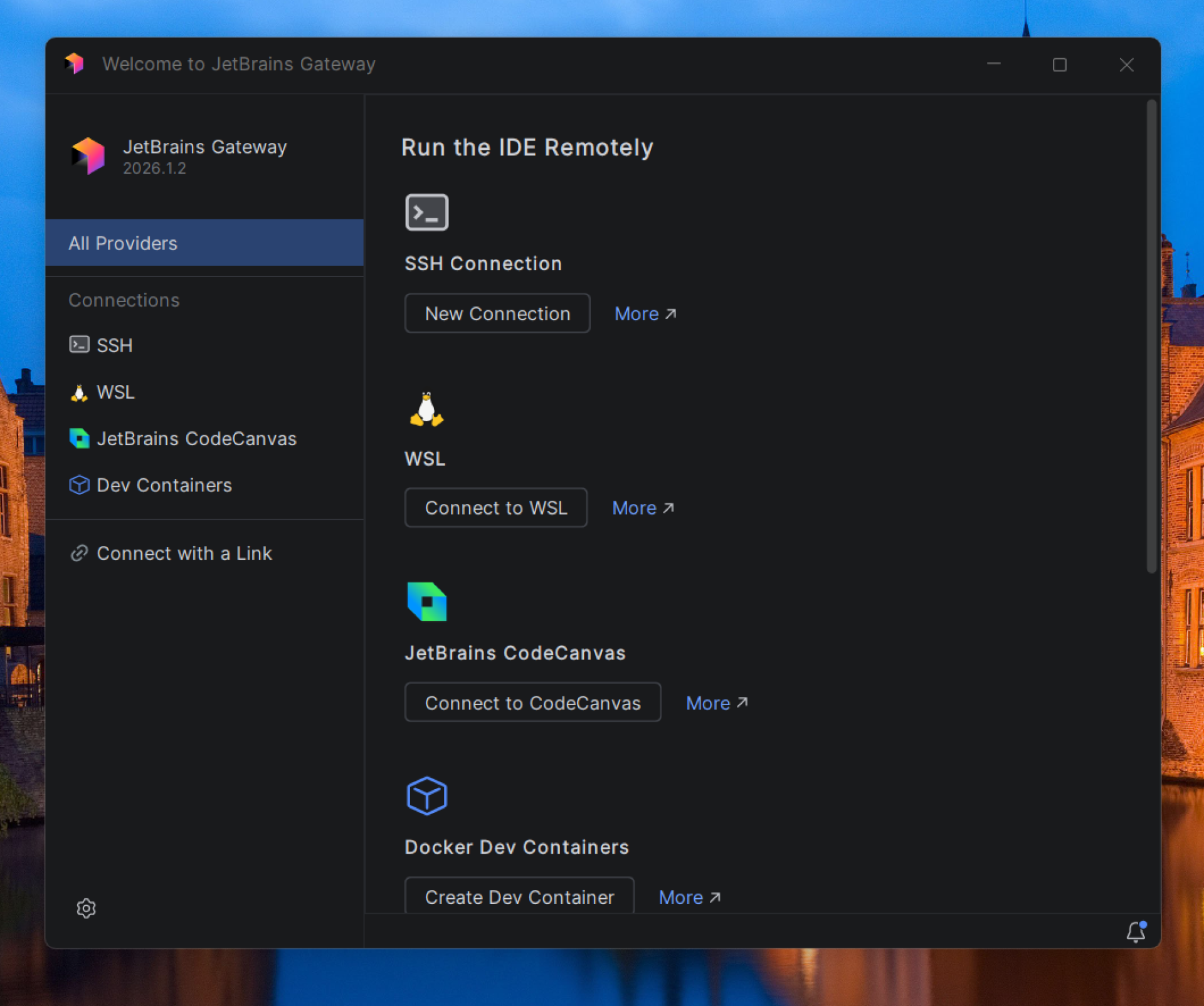
- Open JetBrains Gateway (or open your IDE welcome screen and click Remote Development → SSH).
- Click New Connection under the SSH connection provider.
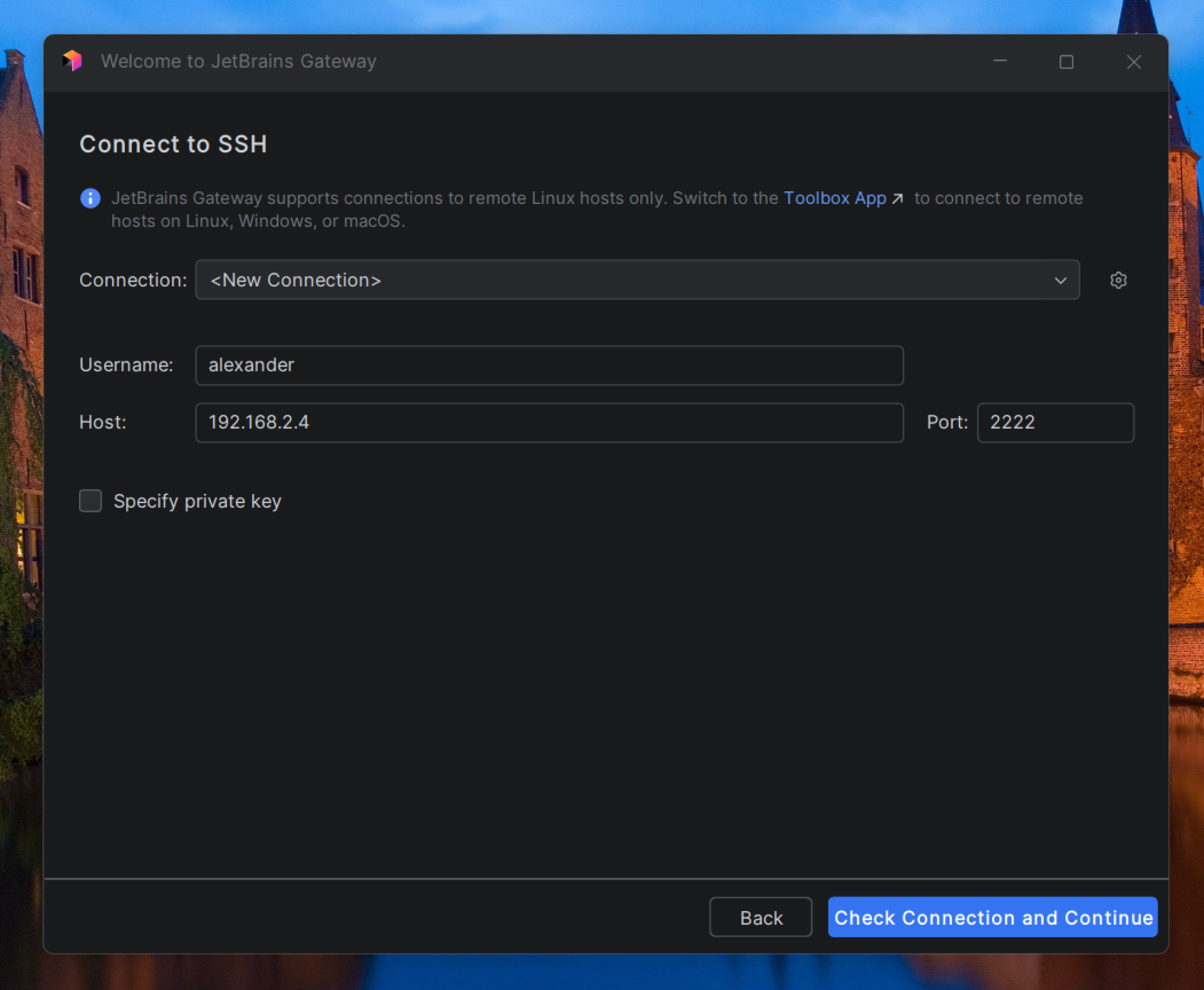
- Fill in the connection details:
- Host:
<homelab-ip> - Port:
2222- your preferred port - Username:
alexander- your preffered username - Authentication type: Password (or Key pair once SSH keys are configured)
- Host:
- Click Check Connection and Continue.
- On the next screen, select the IDE (e.g. PhpStorm) and version to deploy.
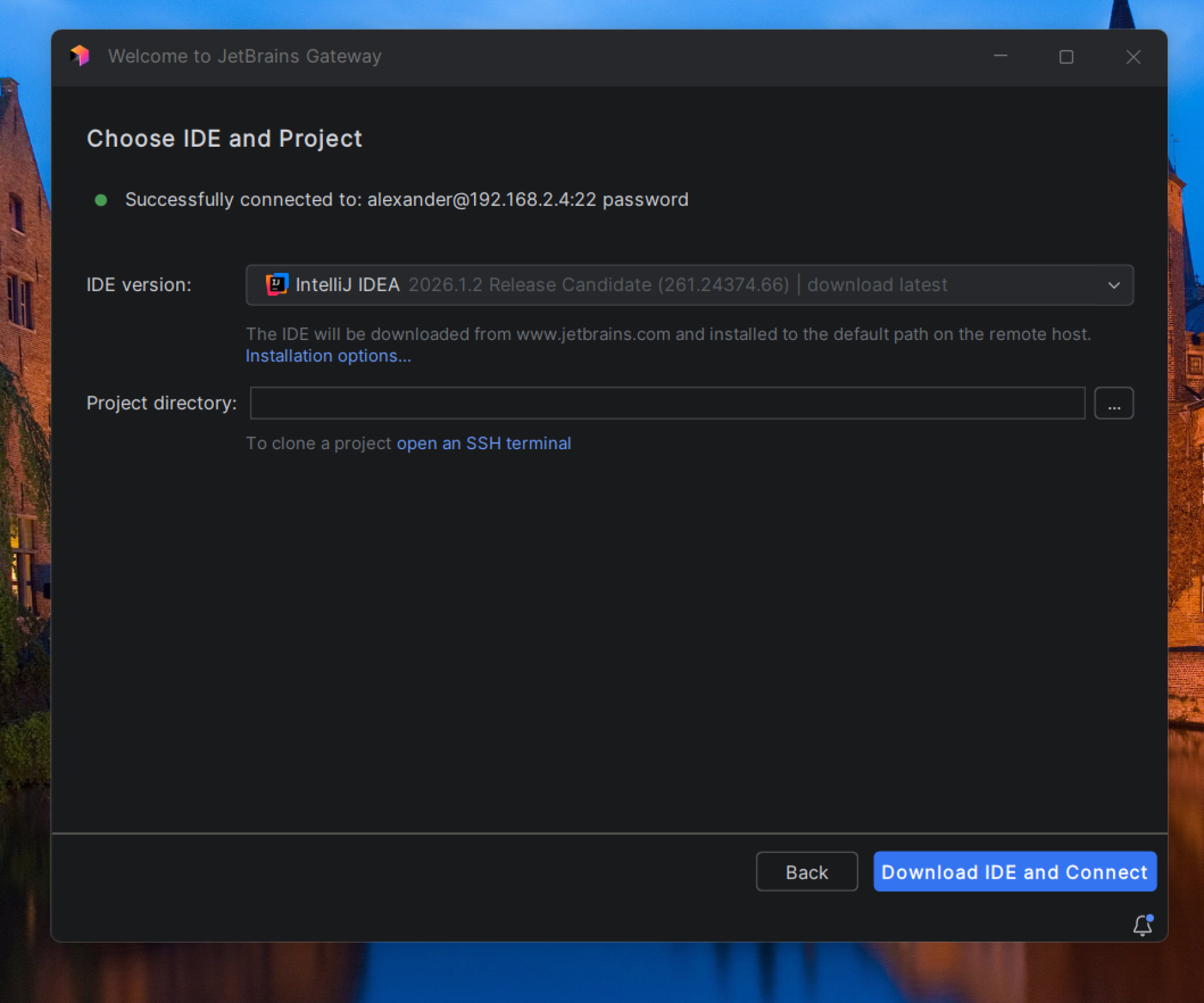
Tip: You are not confined to the versions Gateway lists in the UI. Head to the JetBrains website, grab the direct download link for any version you want, and paste it into the "Installation options" field. This is useful if you need a specific older release or want to pin to a version you know is stable.
- Set the project directory to
<your-project>. - Click Download IDE and Connect.
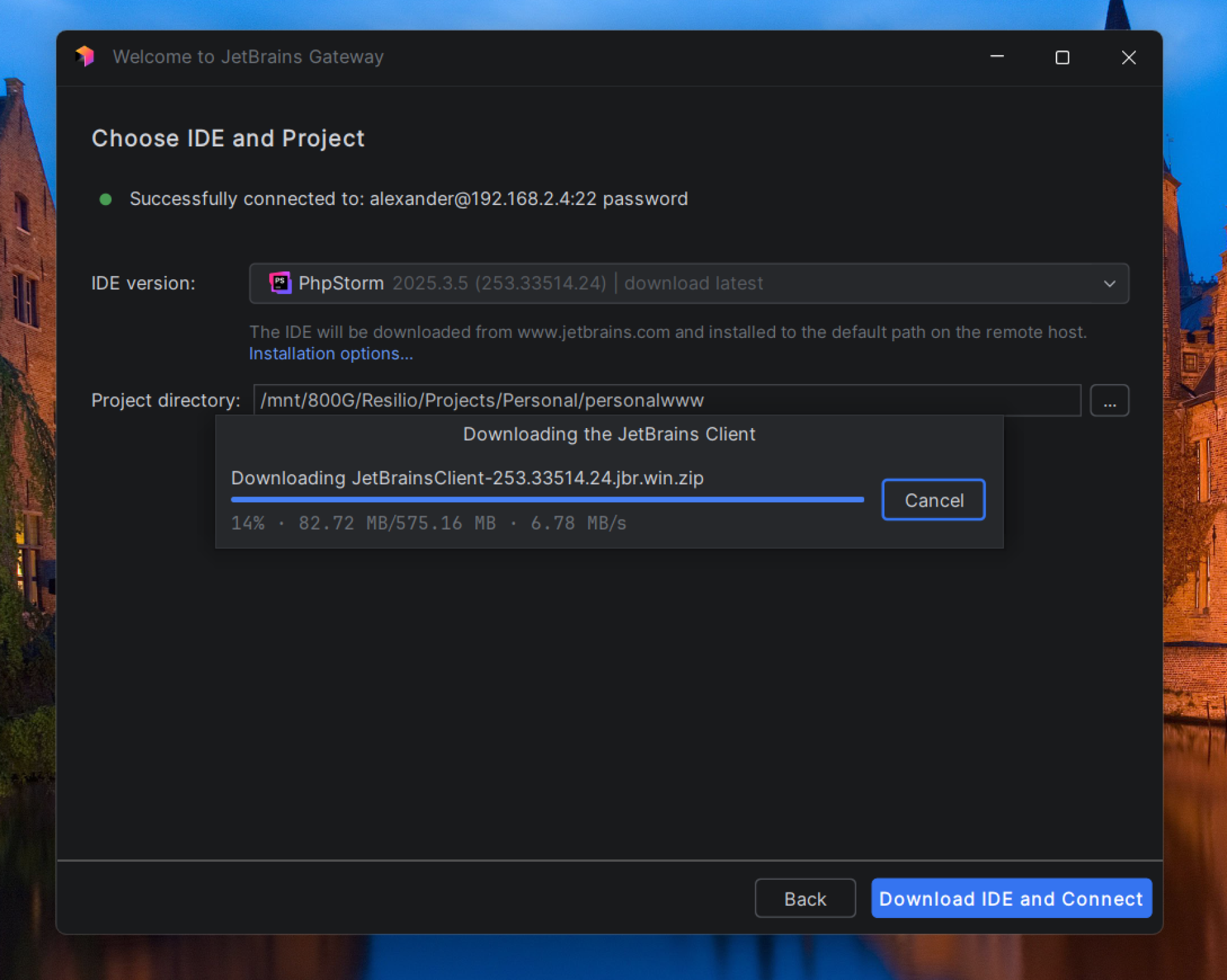
Gateway downloads the backend to ~/.cache/JetBrains/RemoteDev/dist/ inside the container and starts it headlessly. The JetBrains Client (thin UI) then launches on the EliteBook and connects. Subsequent connections are instant because the download is cached in ./ide/cache/ on the host — persisted across container rebuilds.
Why Resilio Sync Instead of Just Git?
Git is still used for version control and collaboration. Resilio Sync solves a different problem: keeping other machines in sync with what's happening on the server, without routing through the cloud.
The key distinction in this setup is that the EliteBook does not run Resilio Sync for the coding project. Running it there would spike CPU and RAM — defeating the entire point. Instead, the EliteBook accesses the project files directly on the server through JetBrains Gateway's remote filesystem over SSH. Every edit made in the IDE is written straight to /home/alexander/Resilio/<project> on the t740.
Resilio then propagates those changes to other peers — a MacBook Pro, or any other machine configured as a peer — almost instantly over the local network. This means:
- Other machines always have a current copy of the project without a manual
git pull. - Sync is peer-to-peer over LAN — no internet dependency, no central server, no cloud storage fees.
- Git remains the source of truth for history and collaboration; Resilio handles the real-time availability layer on top of it.
The Real-World Gain
Running on this setup over WiFi on a medium-sized PHP project:
Before (IDE running locally on the EliteBook):
- Fan at full speed within minutes of opening the project.
- Chassis hot to the touch — aluminium conducts heat fast.
- 70–80% CPU at idle while the IDE indexes.
- 5–6 GB of RAM consumed locally by the IDE alone.
After (remote backend on the t740 over WiFi):
- Fan silent. Chassis stays at room temperature.
- CPU usage on the EliteBook around 5% at idle, peaking at roughly 25% when actively using the IDE — compared to 70–80% just sitting there locally.
- RAM consumption on the client drops considerably — the backend itself runs at around 1–1.5 GB rather than the 5–6 GB a local IDE installation pulls in.
- Full IDE responsiveness: autocomplete, inspections, and navigation all work as if running locally.
- Changes are written directly to the server's Resilio folder and propagate to other peers automatically.
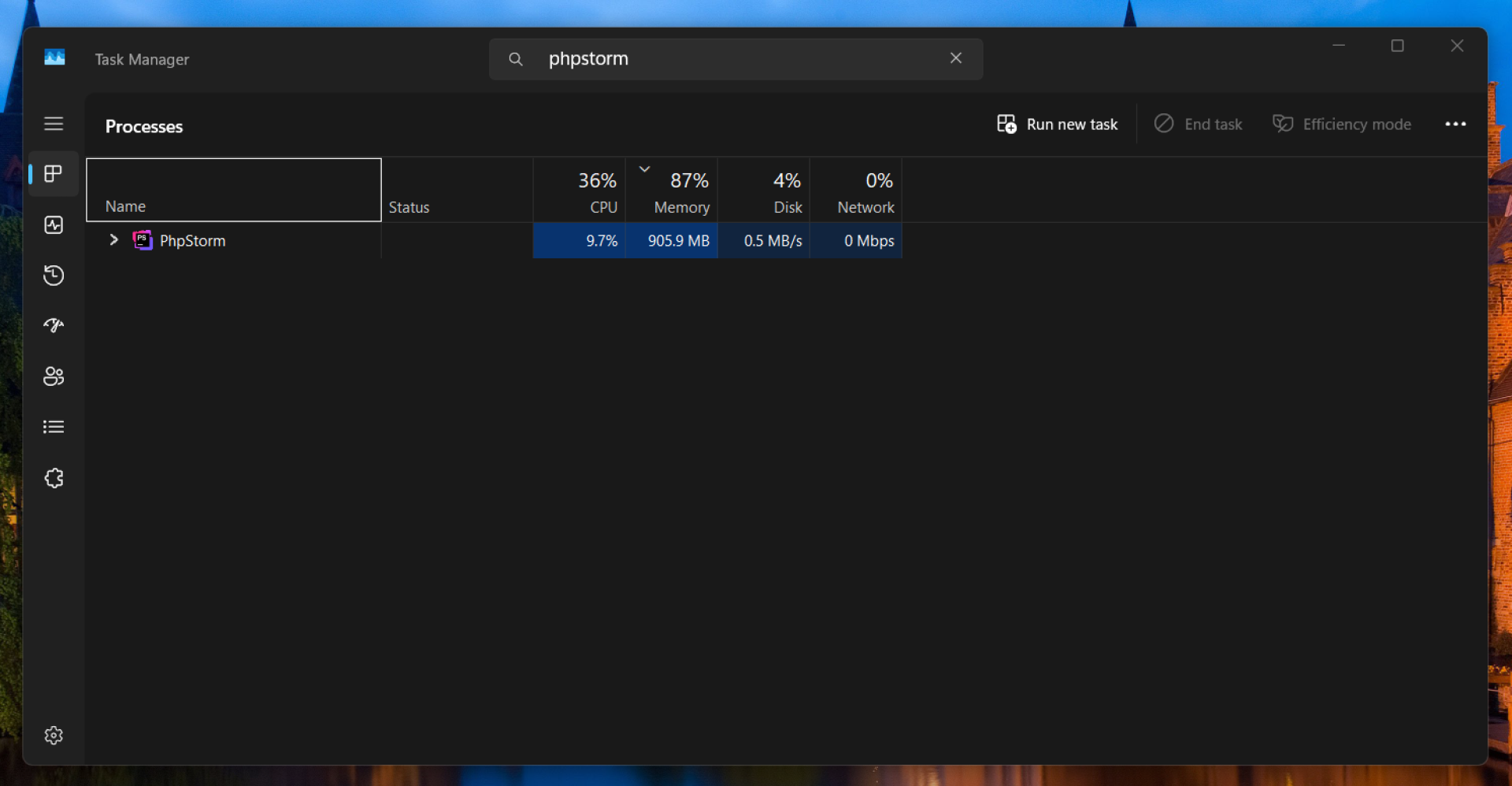
The t740 does the indexing, analysis, and Xdebug handling. The i5 EliteBook just draws pixels.
Tips & Security Notes
Passwords in Dockerfiles — never hardcode them. Use build args instead:
ARG DEV_PASSWORD
RUN echo "alexander:${DEV_PASSWORD}" | chpasswd
Build with:
docker compose build --build-arg DEV_PASSWORD=yourpassword
Or put it in a .env file (not committed to git) and reference it from docker-compose.yml.
SSH key auth — worth setting up once password auth is confirmed working. Copy your public key into the running container:
ssh-copy-id -p 2222 alexander@<homelab-ip>
Then set PasswordAuthentication no in the sshd config and rebuild.
Port exposure — by default, 2222 and 9003 bind to all interfaces. If you want to restrict to a specific LAN interface:
ports:
  - "192.168.1.x:2222:22"
  - "192.168.1.x:9003:9003"
Docker Engine version — host-gateway requires Docker Engine 20.10 or newer. Check your version with docker version.
License — You need an active JetBrains subscription. Gateway checks for a valid license on the local machine when connecting; if an active subscription is already associated with your JetBrains account, the client picks it up automatically. If you don't have one yet, JetBrains offers a 30-day free trial — enough to evaluate whether the remote setup works for your workflow before committing.